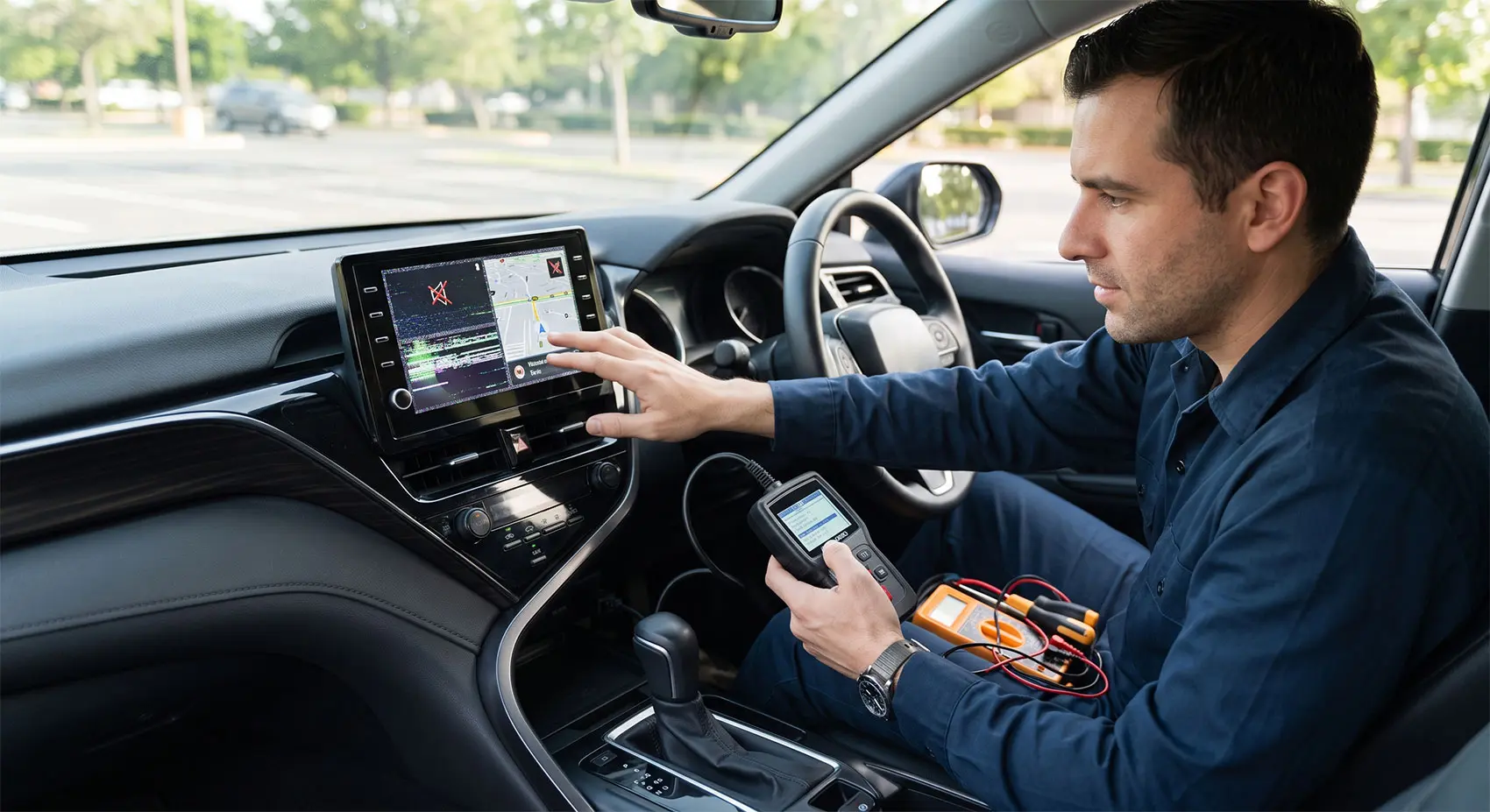
Picture this: you are cruising down the highway, relying completely on your vehicle’s navigation system to guide you through an unfamiliar city. You reach out to adjust the volume or queue up your favorite podcast, and suddenly nothing. The screen freezes, the audio stutters, or worse, the entire display goes entirely black. In an instant, your high-tech dashboard has become a frustrating, unresponsive piece of dark glass. If you own a modern vehicle, chances are you have experienced the sudden dread of a car infotainment system glitch.
In today’s automotive landscape, the infotainment system is the central nervous system of your driving experience. Gone are the days when a car radio was just a simple receiver with physical dials and a few preset buttons. Now, our dashboards are dominated by massive touchscreens that handle everything from climate control and vehicle diagnostics to Apple CarPlay, Android Auto, and complex over-the-air (OTA) firmware updates. While this massive leap in technology offers incredible convenience and connectivity, it also introduces a host of potential software bugs, pairing failures, and hardware hiccups that can leave you stranded in digital silence.
When faced with a frozen screen or a failing Bluetooth connection, the immediate instinct for many drivers is to panic and book a costly appointment at the dealership. Service centers know that electronic diagnostics can be lucrative, often charging premium labor rates just to plug a scanner into the OBD2 port or perform a basic factory reset. But here is the good news: you do not necessarily need a certified automotive technician or a thick wallet to get your screen functioning smoothly again.
The truth is, the vast majority of common car infotainment system glitches can be diagnosed and resolved right in your driveway with a few simple, actionable steps. Whether you are dealing with a software interface that refuses to sync with your smartphone, a system stuck in a frustrating reboot loop, or a suspected blown fuse, knowing how to troubleshoot these issues is an essential skill for the modern driver. In this comprehensive guide, we are going to walk you through exactly how to identify the root cause of your screen problems and provide the step-by-step DIY fixes you need to get your system back online and your daily commute back on track.
Identifying the Symptoms
Before you can fix any problem with your car's infotainment system, you need to play detective. Not all glitches are created equal, and understanding exactly how your screen is malfunctioning will save you hours of unnecessary troubleshooting. Identifying the specific symptoms correctly is the crucial first step to getting your digital dashboard back in working order.
Blank Screen vs. Frozen Interface
One of the most common and panic-inducing issues drivers face is the dreaded blank screen. You start your car, the engine roars to life, but the dashboard display remains pitch black. A truly blank screen usually points to a power delivery issue, such as a blown fuse, a loose wiring harness, or a completely dead head unit. However, you need to differentiate a totally blank screen from a "black but backlit" screen. If the screen is glowing slightly in the dark but not displaying any text or logos, the system is receiving power, but the core software has failed to boot properly.
On the other hand, a frozen interface is an entirely different beast. This is when your screen displays information—perhaps your navigation map or the radio station you were just listening to—but it absolutely refuses to respond to any input. You tap the screen, you turn the physical dials, and nothing happens. This symptom almost always points to a software crash or an overloaded processor, much like when your laptop or smartphone freezes up when too many apps are open.
Unresponsive Touchscreen and Audio Dropouts
Sometimes, the display looks perfectly normal, and the physical buttons work flawlessly, but the touchscreen itself is completely unresponsive. You can change the volume using your steering wheel controls, but tapping the "Next Track" button on the glass does nothing. This specific glitch can sometimes be physical—caused by dirt, screen protectors, or moisture confusing the capacitive sensors—but it is often a deeper software desynchronization issue.
Another highly frustrating symptom is random audio dropouts. You might be listening to a Spotify playlist via Bluetooth or Apple CarPlay, and the sound cuts out intermittently, or the system drops your phone connection entirely. While this can feel like a massive infotainment failure, it is usually just a localized communication error between your smartphone and the car's receiver. For example, if your iPhone or Samsung recently underwent a major operating system update, your car's older firmware might struggle to maintain a stable digital handshake, leading to dropped calls and stuttering music.
By pinpointing exactly what your system is (or isn't) doing, you narrow down the culprit immensely. Is it a hardware failure, a core software crash, or just a smartphone connectivity bug? Once you know the exact symptom, you can apply the right cure without wasting time.
The "Quick Fix": Soft and Hard Resets
When a computer or smartphone acts up, the oldest and most reliable trick in the tech support playbook is to simply turn it off and turn it back on again. The exact same logic applies perfectly to your car's infotainment system. Because modern head units are essentially just specialized computers running complex operating systems, a quick reboot is often all it takes to clear a frozen screen, restore dropped audio, or fix a lagging navigation map. This is known as a soft reset, and it should always be your absolute first line of defense before attempting anything more drastic or reaching for your toolbox.
Brand-Specific Reset Sequences
Performing a soft reset does not require any special tools, and you typically do not even need to turn off the engine to do it. However, the exact button combination required varies wildly depending on your car's manufacturer. For example, if you are driving a modern Honda or Acura, simply pressing and holding the physical audio power or volume knob for about 10 to 15 seconds will force the system to prompt a reboot. In many Ford vehicles equipped with the SYNC 3 or SYNC 4 system, you need to simultaneously hold down the Power button (usually the center of the volume knob) and the Right Seek button for about 10 seconds until the screen goes black and the Ford logo appears.
Similarly, for many Chrysler, Dodge, Jeep, or Ram vehicles utilizing the Uconnect system, pressing and holding both the volume and tuner knobs simultaneously for 15 to 20 seconds will force the display to shut down and restart. If you cannot find the specific sequence for your vehicle in the owner's manual, a quick search for your exact make, model, and year online will usually reveal the "secret handshake" required to force a reboot.
Differences Between Soft Resets and Full Factory Resets
When troubleshooting, it is vital to understand the difference between a soft reset and a hard (or factory) reset. A soft reset is just a forced power cycle. It clears the temporary memory (RAM) and closes any background processes that have crashed—like a buggy Apple CarPlay session—without deleting any of your personal data. Your saved radio stations, Bluetooth paired devices, and home address will all remain perfectly intact.
A factory reset, on the other hand, completely wipes the system back to its original, blank showroom state. This will delete all your paired phones, erase your saved destinations, wipe your Wi-Fi passwords, and reset your customized audio equalizer settings. Factory resets should only be used as a last resort if a soft reset fails to resolve a persistent, deep-rooted software glitch. Furthermore, to perform a factory reset, you generally need the touchscreen to be somewhat responsive, as the option is usually buried deep within the "General Settings" or "System" menu of your digital interface. Always try the physical soft reset button combination first before taking the nuclear option on your personal data.
Troubleshooting Connectivity Issues
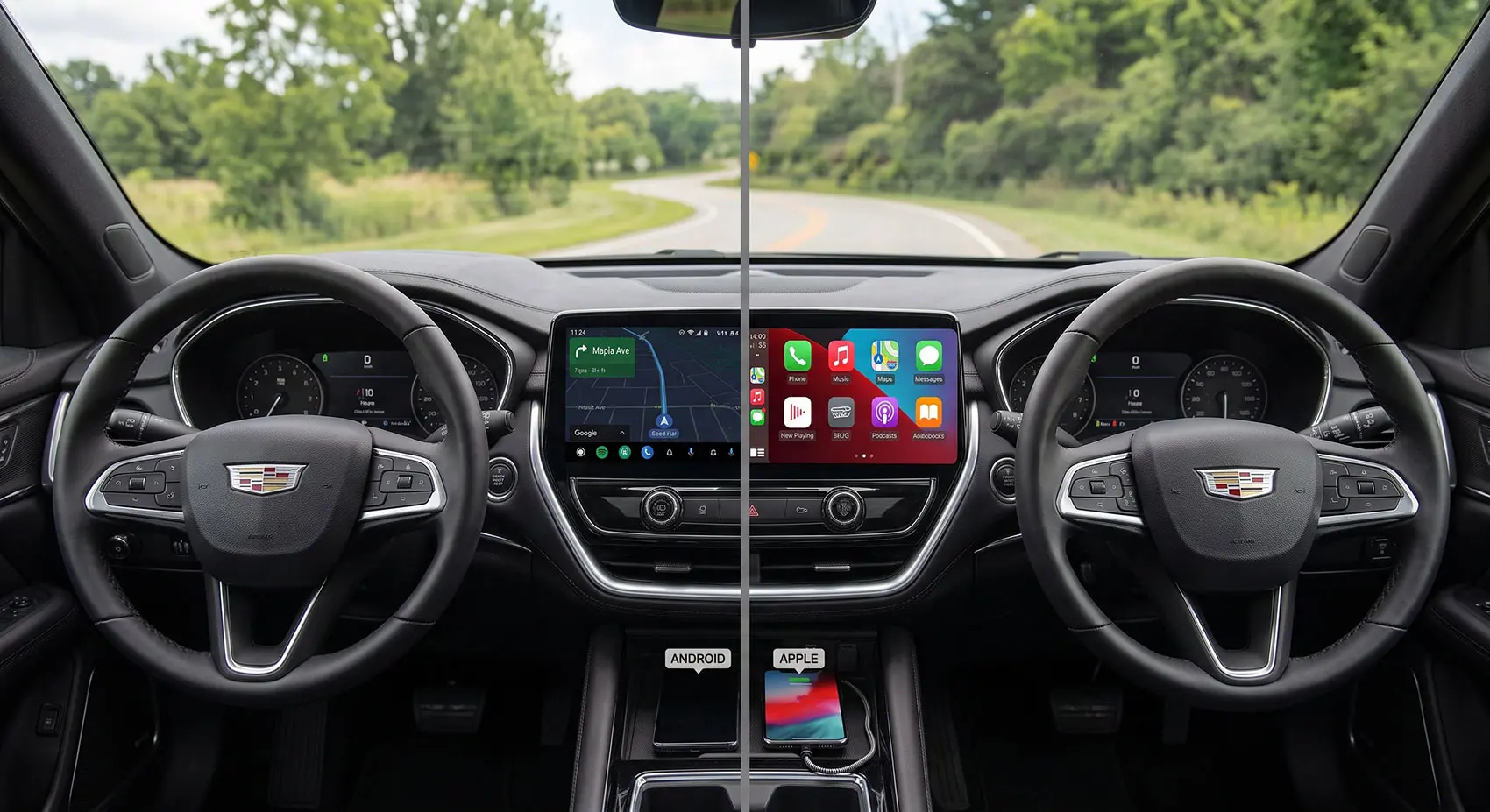
For many drivers, the infotainment system is simply a vessel for their smartphone. Apple CarPlay and Android Auto have revolutionized the driving experience, seamlessly projecting our favorite navigation apps, music streaming services, and messages right onto the dashboard. But when this seemingly magical connection fails, it can be incredibly frustrating. Let's look at how to resolve the most common connectivity hiccups without losing your patience.
Fixing Apple CarPlay and Android Auto Crashes
If Apple CarPlay or Android Auto suddenly drops out or refuses to launch, the first suspect is usually the physical connection. While wireless projection is becoming standard on newer models, millions of vehicles still rely on a wired USB connection. Over time, the charging port on your phone accumulates pocket lint, dust, and debris, preventing the cable from making a secure data connection.
Additionally, cheap aftermarket USB cables might charge your phone, but they often lack the data bandwidth required to transmit heavy digital loads like a live GPS map and high-fidelity audio simultaneously. Always try swapping out your current wire for a high-quality, data-certified, original manufacturer cable first.
If the cable is not the issue, the software might be glitching. Sometimes, your phone's operating system gets confused when jumping between cellular towers and Wi-Fi networks. Simply rebooting your smartphone—not just the car—will often clear the cache and restore the Apple CarPlay or Android Auto digital handshake. Furthermore, check the app settings on your phone; occasionally, a recent OS update will revoke the car's background permissions, silently blocking the connection until you re-authorize it in your phone's settings menu.
Bluetooth Pairing Failures and Smartphone-Induced Interface Bugs
What if you just want to stream audio wirelessly, but your car flat-out refuses to recognize your device? Bluetooth pairing failures are notoriously common, especially right after you buy a new phone or download a major iOS or Android software update. The car's infotainment system is looking for a specific digital signature that your phone has suddenly changed.
The easiest, most effective fix for this is to completely "forget" the connection on both ends. Go into your car's Bluetooth menu and delete your specific phone from its memory. Then, go into your smartphone's Bluetooth settings and tell it to "Forget This Device" regarding your car. By completely severing the old digital tie, you force both computers to perform a fresh, clean handshake.
It is also worth noting that a buggy smartphone can actually crash your entire car interface. If you have an app running in the background of your phone that is constantly pinging for GPS data or struggling to download a podcast over a weak cellular signal, it can overwhelm the car's processor via the Bluetooth link. If your screen suddenly freezes every time your phone connects, try turning your phone's Bluetooth off. If the car's system immediately unfreezes, you instantly know the culprit is the smartphone, not the vehicle.
Digging Deeper: Fuses and Power Delivery
When a soft reset fails to produce any results, and your screen remains completely black and lifeless, the problem might not be software-related at all. It could be a simple lack of electricity. Just like a heavy-duty surge protector in your living room, your vehicle uses a specialized network of fuses to protect its sensitive and expensive digital electronics from sudden power spikes. If there is a sudden electrical surge, the fuse intentionally sacrifices itself by blowing out, instantly severing power to prevent the pricey head unit from completely frying. This brings us to the next critical phase of our diagnostic journey: inspecting the power delivery system.
How to Safely Locate the Infotainment System's Fuse
Your vehicle does not just have one fuse box; it usually has at least two. There is generally a main power distribution box under the hood near the car battery, and a secondary interior fuse box hidden inside the cabin. The interior box is often tucked under the dashboard on the driver's side, behind a plastic kick panel, or sometimes securely behind the glove compartment. To pinpoint the exact fuse responsible for your car's infotainment system, your best friend is the owner's manual.
Open the manual and navigate to the interior fuse box diagram. You are searching for specific labels like "Radio," "Infotainment," "Display," or "Audio." The diagram will provide a specific number corresponding to a physical slot in the fuse box—for example, it might direct you to "Slot 14 - 15A Radio." Once you know exactly where to look, grab a small flashlight and locate the box. A word of caution: never start pulling random fuses out just to check them, as removing the wrong one can accidentally reset other vital vehicle systems, like your transmission control module or airbag sensors.
Identifying and Replacing a Blown Fuse
Once you have located the precise fuse, use a pair of needle-nose pliers or the small plastic fuse puller tool (which is almost always clipped to the inside of the fuse box cover) to gently extract it. Hold the small plastic fuse up to a bright light. Inside the colored translucent casing, you will see a tiny metal wire, usually shaped like a "U" or an "S". If that delicate wire is visibly broken, melted in half, or scorched black, you have successfully found your culprit: the fuse is blown.
Replacing a bad fuse is an incredibly cheap and simple DIY fix, usually costing less than a dollar, but there is one unbreakable golden rule: you must replace it with a fuse of the exact same amperage. If you pull out a blue 15-amp fuse, you must insert a new blue 15-amp fuse. Never force a higher amperage fuse (like a green 30-amp) into that slot just because it fits. Doing so effectively removes the electrical safety barrier, meaning the next power surge could travel straight to your dashboard and permanently destroy your entire infotainment computer, instantly turning a $1 fix into a $2,000 dealership replacement. Push the correct new fuse into the slot, turn your key in the ignition, and watch to see if your screen gracefully springs back to life.
Software, Firmware, and OTA Updates
In the rapidly evolving automotive landscape of 2025 and 2026, our vehicles are essentially rolling computers. Gone are the days when the software your car left the factory with was the software it retained for life. Today, manufacturers push Over-the-Air (OTA) updates directly to your driveway via cellular data or Wi-Fi, silently fixing bugs, adding fresh features, and refining system performance overnight. As we often emphasize in our tech guides here at BlogWheelz, staying current with these digital patches is crucial for a smooth, glitch-free driving experience. However, this modern convenience has introduced an entirely new headache for drivers: the failed OTA update.
Troubleshooting Over-the-Air (OTA) Update Failures for 2025/2026 Models
When a wireless update fails midway through installation, it can leave your infotainment system trapped in a frustrating digital limbo. You might encounter a persistent "Update Pending" message, a progress bar that permanently stalls at 99%, or a screen that constantly reboots itself without ever reaching the home menu.
The most frequent culprit for OTA failures is a dropped or unstable network connection. If your car relies on your home Wi-Fi network for hefty data transfers, pulling just a few feet too far out of the driveway can sever the connection mid-download. To jumpstart a stalled update, move your car closer to the router or connect the infotainment system directly to a strong 5G mobile hotspot from your smartphone.
Another major, often overlooked reason for failure is low battery voltage. Modern head units require a very stable, uninterrupted flow of electricity to safely write new code. If your vehicle's computer detects that the 12-volt battery is dipping too low during the process, it will intentionally abort the installation to ensure you still have enough juice to crank the engine. If an update keeps failing, try hooking your battery up to a trickle charger, or leave the engine idling outdoors in a well-ventilated area while you re-initiate the software download from the system settings.
Knowing When It's Time for a Dealership Firmware Flash
While there are dozens of DIY tricks you can try, there is a distinct line where driveway troubleshooting ends and professional intervention must begin. If a botched OTA update results in a "bricked" unit—meaning the screen is completely black but backlit, stuck in an endless manufacturer logo reboot loop, or displaying a hard system error code—it is time to hand over the keys.
In these severe cases, a standard soft reset or fuse pull will not work because the core operating system files themselves have been corrupted or partially deleted. Dealerships possess specialized diagnostic laptops and hardwired direct-access ports that allow certified technicians to manually wipe the corrupted software and perform a clean "flash" of the original firmware. While having to visit the service center is never ideal, recognizing when a software crash is beyond a driveway fix will prevent you from accidentally causing permanent hardware damage to your expensive display.
Conclusion
Navigating the frustrating world of a malfunctioning car infotainment system does not have to end in an expensive and time-consuming trip to the dealership. As we have explored throughout this comprehensive guide, the vast majority of common glitches whether it is a terrifyingly blank screen, a stubbornly frozen interface, or a dropped Apple CarPlay connection can be diagnosed and resolved right from the driver's seat. By taking a calm, systematic approach, you can save yourself both massive diagnostic fees and unnecessary stress.
Always start your troubleshooting journey with the simplest, most effective solution: the trusty soft reset. Familiarize yourself with your specific vehicle's unique button combination, as this quick reboot is the ultimate cure-all for surface-level software crashes and temporary smartphone pairing failures. If a simple reboot does not do the trick, do not be afraid to dig a little deeper into the physical connections. Checking your USB cables, entirely forgetting and re-pairing your Bluetooth devices, and verifying your smartphone's background network permissions can clear up almost all persistent communication errors between your phone and your car.
When the digital dashboard goes completely dark and a reboot fails, knowing how to safely locate and inspect your interior fuse box is an invaluable skill that might just save you hundreds of dollars. Finally, always keep an eye on those Over-the-Air (OTA) updates. While they are designed to make your modern 2025 or 2026 model run smoother, an interrupted download can cause temporary havoc. Ensure you always have a strong data connection and a healthy battery before initiating any manufacturer software patches.
Ultimately, your modern dashboard is a highly complex computer, and just like any piece of advanced technology, it occasionally needs a little DIY troubleshooting love. By keeping these straightforward tips in your automotive toolkit, you can quickly conquer the digital gremlins, skip the dealership waiting room, and get back to enjoying the open road with your favorite tunes and navigation firmly intact.



Written by Kousar Shabbir
Published Aug 11, 2026 in Auto Tech.