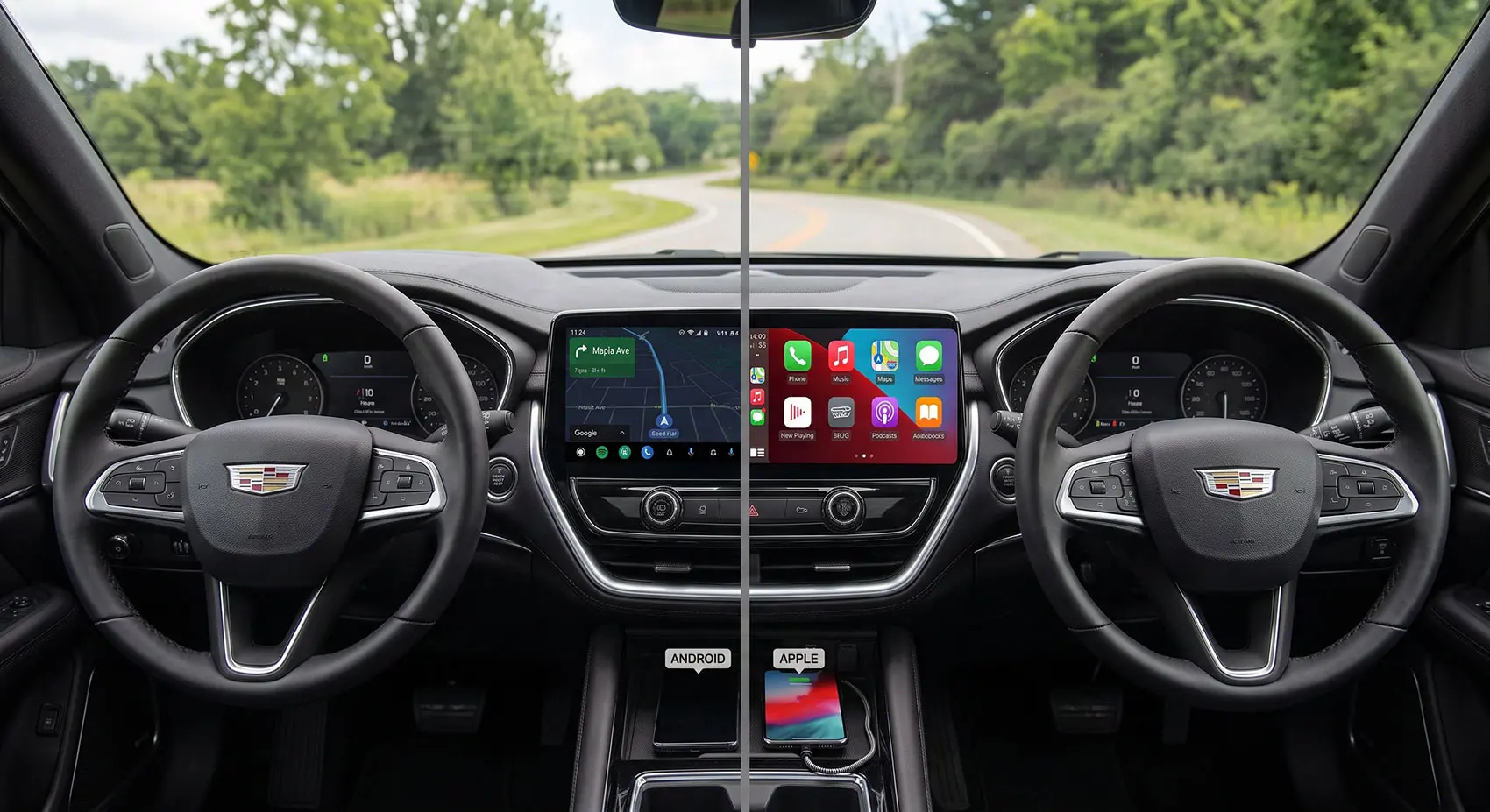
Few things are quite as frustrating as climbing into your car, starting the engine, and watching your infotainment screen spin endlessly while trying to launch Android Auto or Apple CarPlay. You wanted a seamless, cord-free drive where your favorite navigation app, playlist, and text messages load instantly. Instead, you are left tapping your screen, unplugging and re-plugging a wireless adapter, or dealing with an audio stream that stutters and cuts out entirely just as you pull onto a busy highway.
Wireless projection technology has evolved rapidly over the past few years, offering incredible convenience by eliminating the clutter of charging cables in your center console. However, unlike traditional wired connections that deliver a steady, dedicated stream of data and power simultaneously, wireless CarPlay and Android Auto rely on a delicate handshake between your smartphone’s Wi-Fi chip and your car’s head unit, all while navigating heavy Bluetooth interference in the cabin. When these invisible digital signals clash, the connection drops.
Whether you drive a daily commuter with a factory infotainment system or a sleek vehicle upgraded with an aftermarket head unit, intermittent connection drops can turn a pleasant commute into a distracting headache. The good news is that most wireless disconnection issues are not permanent hardware failures. Instead, they usually stem from background software conflicts, outdated firmware, or minor network handoff glitches. In this guide, we will break down the core reasons why your wireless projection keeps failing and provide clear, actionable steps to restore a rock-solid, cord-free connection once and for all.
Why Wireless Projection Fails
To understand why your wireless Android Auto or Apple CarPlay drops out mid-drive, you first need to look at the invisible digital battlefield happening inside your car's cabin. Unlike a wired USB connection that maintains a dedicated, high-speed physical link for data and power, wireless projection relies on a complex, simultaneous handshake between two heavy-duty protocols: Bluetooth and Wi-Fi. When you start your engine, your phone and head unit use Bluetooth to establish an initial low-energy connection. Once that handshake is successful, they seamlessly transition your heavy data streams, such as live Google Maps navigation, Spotify music streaming, and real-time voice commands, over a dedicated 5GHz Wi-Fi Direct network channel.
The moment this system encounters interference, the connection shatters. The 5GHz Wi-Fi frequency band is exceptionally fast, but it is also sensitive to physical barriers and environmental noise. If your phone is buried deep inside a center console, tucked away in a thick leather wallet case, or sitting directly over a hot wireless charging pad, signal attenuation spikes. Furthermore, urban environments are saturated with overlapping Wi-Fi networks from roadside buildings, dashcams broadcasting their own local Wi-Fi signals, and portable mobile hotspots. When your head unit's receiver momentarily loses the clean 5GHz channel to outside interference, it cannot instantly recover, resulting in a sudden black screen or an abrupt disconnect.
Compounding physical signal degradation are software-level bottlenecks. Modern smartphones are designed to aggressively preserve battery life and manage thermal thresholds. If your phone begins to heat up while running demanding navigation apps under direct sunlight on your dashboard, the operating system's background power management kicks in. It may aggressively throttle background data syncs, restrict Wi-Fi packet prioritization, or put the Android Auto or CarPlay app processes into a low-power sleep state. Additionally, active Virtual Private Networks (VPNs) running in the background often route your phone's data traffic through external tunnels, completely breaking the local IP address handoff required by wireless head units. Recognizing these dual physical and software friction points is the first crucial step toward permanently fixing your dropouts.
Troubleshooting Android Auto Disconnections
When Android Auto is the system dropping your connection mid-drive, the root cause usually boils down to localized cache corruption, aggressive power-saving policies, or a broken Wi-Fi handoff between your phone and the car's head unit. Because Android Auto relies heavily on background Google Play Services and system-level networking apps to maintain communication, even a minor software glitch can sever the link.
Your first line of defense is clearing out corrupted app data. Head into your phone’s settings, locate Apps, find Android Auto, and tap on Storage and Cache. Clear both the cache and the stored data. This forces the application to rebuild its initialization files and clears out any outdated configuration parameters left over from previous system updates. Following this, you should completely delete your car’s Bluetooth profile from your phone’s settings, and simultaneously remove your phone from the car’s head unit list. A clean, fresh re-pairing session eliminates legacy handshake bugs.
Next, you must address Android’s aggressive background battery management. Modern operating systems frequently put apps to "sleep" or restrict their background data usage if they consume continuous resources. Navigate to your battery settings, find Android Auto, and ensure it is set to "Unrestricted" or "Optimized" rather than restricted mode. This guarantees your phone will not starve the app of necessary network packets when your screen dims or when processing heavy multitasking loads. Finally, if you use a Virtual Private Network (VPN), make sure to disable it or configure split-tunneling before stepping into your vehicle. VPN protocols encrypt and reroute local traffic through external servers, which directly breaks the local IP address communication stream required by wireless Android Auto adapters and factory head units.
Troubleshooting Apple CarPlay Disconnections
While Android devices face unique background restriction hurdles, Apple CarPlay users encounter their own set of connectivity gremlins, usually tied to iOS network caching, strict security restrictions, or corrupted Bluetooth-to-Wi-Fi handshake profiles. Because Apple tightly integrates its ecosystem, fixing a stubborn CarPlay drop requires cleaning out the communication pathways between your iPhone and your dashboard head unit.
Your absolute best starting point is resetting your iPhone's network settings. This process clears out corrupted Wi-Fi configurations, Bluetooth pairing glitches, and local IP routing errors without deleting your personal files. Go to your iPhone settings, tap General, select Transfer or Reset iPhone, choose Reset, and tap Reset Network Settings. Keep in mind that this will erase saved Wi-Fi passwords, so you will need to reconnect to your home Wi-Fi afterward, but it wipes clean any lingering network handoff bugs causing your car connection to crash.
Next, you need to break the cycle of a corrupted connection profile by completely forgetting the vehicle on both ends. On your iPhone, open Settings, go to General, tap CarPlay, select your current car, and tap "Forget This Car." Simultaneously, navigate to your car's infotainment settings menu, locate the device manager or connected phones list, and delete your iPhone's profile entirely. Once both devices have completely wiped each other's memory, restart your iPhone and set up a fresh CarPlay connection from scratch as if it were your first time pairing.
Finally, check for hidden parental control or Screen Time restrictions that might be blocking background connections. Under Settings > Screen Time > Content & Privacy Restrictions > Allowed Apps, ensure that CarPlay is explicitly enabled and not restricted. Additionally, if your iPhone has a restrictive corporate Mobile Device Management (MDM) profile installed, it may block local Wi-Fi peer-to-peer data transfers required by wireless CarPlay adapters, so checking with your IT administrator may be necessary if corporate security policies are active.
Updating Your Infotainment System
Even if your phone is optimized, your battery settings are dialed in, and your network caches are clean, your wireless Android Auto or Apple CarPlay session can still constantly crash if your car's infotainment firmware is running on outdated software. Infotainment head units, whether built into a factory OEM system from manufacturers like Ford, Hyundai, Toyota, or installed as an aftermarket unit from brands like Sony, Pioneer, and Alpine, rely on complex microcode to handle Wi-Fi Direct socket communication. Early firmware versions for these head units frequently suffer from memory leaks, poor 5GHz frequency regulation, and unstable Bluetooth-to-Wi-Fi transition handshakes.
Updating your vehicle's head unit firmware is one of the most effective, yet frequently overlooked, long-term solutions for persistent disconnections. For factory systems, check your vehicle manufacturer's owner portal or owner's manual to see if software updates can be downloaded via a USB thumb drive or downloaded over-the-air (OTA) via your home Wi-Fi or cellular hotspot. If you use an aftermarket head unit, visit the manufacturer's official support website, enter your exact model number, download the latest firmware update package onto a formatted USB drive, and plug it directly into your dashboard's media port. Always ensure your engine is running or your ignition is switched to accessory mode during the update process so the system does not lose power mid-installation, which can brick the unit.
Beyond software updates, performing a factory data reset on the head unit itself can clear out corrupted cache files accumulated over months of device pairing. Once the infotainment system is reset to factory defaults, it clears out ghost device profiles and rogue configuration flags that cause wireless handshakes to fail. After updating or resetting your head unit, re-pair your phone completely from scratch. You will instantly notice a cleaner, more stable connection framework that resists external radio interference much better than outdated factory software.
Conclusion & Preventative Tips
Dealing with frequent disconnections from wireless Android Auto and Apple CarPlay can test the patience of even the most tech-savvy drivers. However, as we have explored throughout this guide, these frustrating dropouts are rarely permanent mechanical faults. Instead, they are usually the result of a delicate ecosystem clash between high-frequency 5GHz Wi-Fi channels, external electromagnetic interference, aggressive phone battery optimization routines, and outdated head unit firmware. By systematically cleaning out your network caches, resetting corrupted pairing profiles, updating your vehicle's infotainment microcode, and optimizing your background application permissions, you can permanently banish these mid-drive interruptions.
Beyond software fixes, adopting a few smart preventative habits will ensure your wireless projection stays rock-solid for the long haul. First, keep an eye on your phone's thermal management. Wireless charging pads generate a significant amount of ambient heat, which causes smartphones to rapidly overheat, especially when simultaneously running heavy GPS navigation and audio streaming apps under direct sunlight. When a phone overheats, its operating system aggressively throttles processor speeds and limits Wi-Fi performance, which immediately triggers a connection drop. Whenever possible, use a high-speed USB-C charging cable instead of a wireless charging pad during long road trips, or position your phone in front of an active dashboard air conditioning vent to keep operating temperatures cool.
Finally, keep your digital environment clean. Periodically clear out old, unused Bluetooth and Wi-Fi profiles from your car's head unit, ensure your phone's operating system and core projection apps are updated to their latest stable releases, and avoid running heavy background VPNs that interfere with local IP address handshakes. By implementing these proactive maintenance steps, you will enjoy a seamless, completely cord-free driving experience where your favorite maps, music, and messages load instantly every single time you turn the ignition.



Written by Maarukh Shahbaz
Published Sep 16, 2026 in Auto Tech.